Design in Power BI: clearer, more useful, and actionable reports
Your Power BI report is technically perfect. Your users still don’t open it. This is the most common problem we encounter with enterprise BI teams and it has nothing to do with data quality, DAX measures, or model design. It has everything to do with the user experience.
Introduction
Power BI has become a key tool for bringing data closer to the business. However, a report does not generate value solely by having correct data, a good model, or well-constructed DAX measures. To really help you make decisions, it should also be easy to understand, navigate, and use.
This is where UX/UI design comes into play. Applying user experience and visual interface principles in Power BI is not about “decorating” dashboards, but about building clearer, more intuitive, and action-oriented reports. A good report does not show everything that can be measured; it shows what the user needs to decide.
Whether you manage 20 reports or 200, the principles below will help you build reports that get opened, understood, and acted on.
Why UX/UI matters in Power BI
Many reports are designed from a technical logic: what data exists, what tables we have, and what charts we can create. But the starting point should be different: what the user needs to understand and what decision they should make after consulting the report.
UX refers to the complete experience: if the user understands where they are, they find what they are looking for and can drill down when they need to.
UI refers to the visual part: colors, typography, buttons, icons, spacing, and layout. In Power BI, the two concepts are very connected: confusing navigation, undiscerning colors, or cluttered pages can make a technically correct report useless.
When reports are easy to use, adoption increases, time-to-insight decreases, and data-driven decision-making becomes a cultural standard rather than an exception.
Design with the user in mind
Before building visuals, it is worth answering some basic questions:
- Who will use the report?
- What decision do they need to make?
- What level of detail do they need?
- How often will they consult it?
- In what context will you use it: desktop, Teams, mobile?
It is not the same to design for management as for an operational team. Management often needs KPIs, trends, and alerts.
An operational user may need filters, transactional detail, and daily tracking. Tailoring the design to the user profile improves adoption and avoids reports full of information that no one uses.
The answers to these questions should drive every design decision, from the number of pages to the choice of visuals and the level of filter complexity.
Visual hierarchy and clarity
The page should guide the eye. A common and effective structure is:
- Main KPIs at the top
- Trends in the central area
- Comparisons or rankings in secondary areas
- Detail at the end or on specific pages.
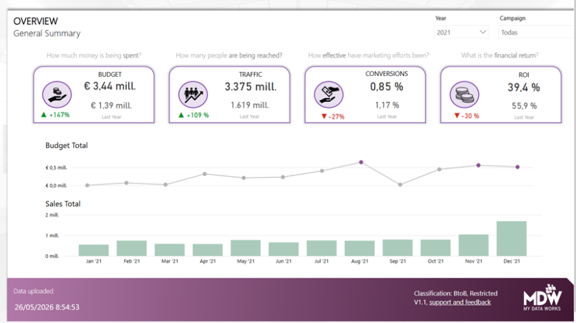
It’s also important to reduce the visual load. More graphics don’t always mean more value. A report with too many colors, tables, filters, and labels forces the user to invest time in understanding the screen before interpreting the data. Using white space, grouping related information, and eliminating redundant visuals helps make the main message clear.
Color, titles, and context
Color must have an intention. A well-used corporate palette provides consistency, but it’s best to reserve bold colors for alerts, deviations, or key information. If red indicates risk and green indicates a positive outcome, that logic should be maintained throughout the report.
Titles are also part of the design. It is not the same to title a “Sales” chart as “Monthly evolution of net sales vs target“. The second title provides context and reduces ambiguity. Whenever necessary, it is advisable to include:
- Unit of measure
- Period covered
- Update date
- Data source
- Definition of the KPI.
This avoids different interpretations between business areas. Moreover, for organizations operating across regions, some KPIs may be calculated differently in Spain than in Brazil. Explicit definitions and currency context prevent misalignment and reduce the number of clarification emails your team receives after each report publication.
Navigation: Turn your report into a guided experience
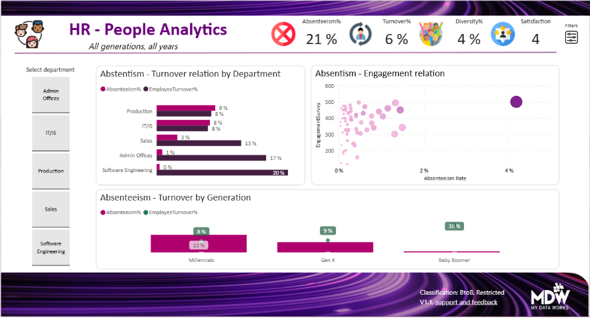
Navigation is one of the elements that has the greatest impact on user experience. A report shouldn’t feel like a collection of disconnected pages, but rather a guided experience that helps the user know where they are, what to check out, and how to dig deeper.
A good practice is to create a landing page with the objective of the report, main KPIs, last update date and links to the most relevant sections. This page helps contextualize content and makes it easier for new users to onboard.
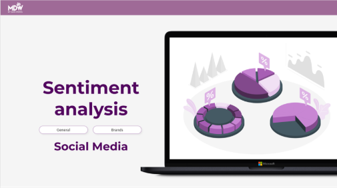

It’s also a good idea to use a side or top menu instead of relying only on the bottom tabs in Power BI. A constant menu on all pages gives a sense of structure and allows you to move through the report as if it were a business application.
The buttons must have a clear purpose: Home, Back, View Detail, Clear Filters, Show Filters, or Hide Filters. If icons are used, it is best to accompany them with text, especially in reports for non-technical users.
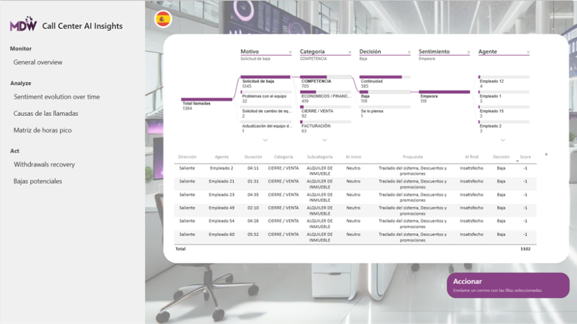
Drillthrough allows you to move from a summary view to a detail page filtered by customer, product, region, or manager. This avoids cluttering the homepage and offers depth only when the user needs it.
Bookmarks are also useful for creating dynamic experiences: hidden filter panels, toggle between graphical and table view, or small tabs within the same page. Used well, they allow you to keep the report clean without taking away analysis capacity.
Filters, Accessibility, and Consistency
Filters should give control, not generate confusion. It is worth differentiating between main filters, which are always visible, and secondary filters, which can be in a drop-down panel. In addition, the names must be understandable to the business, not necessarily the technical names of the model.
Also, standardizing filter labels across reports, using the same term for the same concept everywhere, is a small effort that significantly reduces user confusion.
Accessibility also matters: sufficient contrast, legible typography, clear icons, and not relying on color alone to convey information.
Visual consistency between pages reduces learning effort: same menu placement, same button styles, same filter logic, and same criteria for interpreting positive or negative deviations.
Conclusion
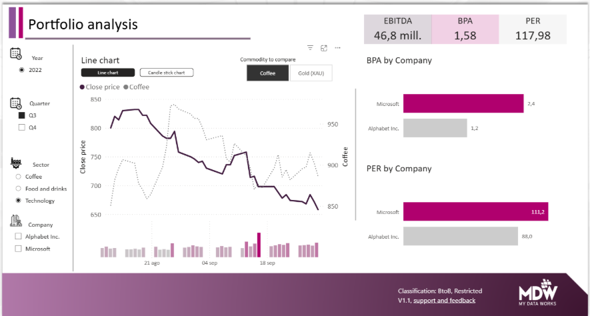
Designing well in Power BI doesn’t mean creating prettier reports, but more useful reports. Visual hierarchy, navigation, filters, color, titles, and consistency directly influence adoption and the user’s ability to turn data into decisions.
For enterprise organizations, a poorly designed report does not just frustrate one user, it erodes trust in the entire BI environment. The investment in UX/UI design is an investment in data-driven culture at scale.
And the good news is that most improvements do not require rebuilding reports from scratch. A focused review of navigation, filter naming, title clarity, landing page structure, and visual hierarchy can significantly improve the usability of an existing report.
At MDW, we work with enterprise BI teams to review, redesign, and scale Power BI environments, from individual report improvements to full workspace governance frameworks. Get in touch to schedule a free report design review.
Why MDW?
🏆 Finalist, Microsoft Global Partner of the Year, Power BI (2022), recognized among 3,900+ nominations from 100+ countries
5× Microsoft Partner of the Year, including Data & AI (2023), Azure (2024), AI Excellence (2025)
100% Microsoft-certified consultants across Data, BI, and AI
Trusted by enterprise organizations including JTI, Repsol, Vaudoise, BBVA, Heineken, SwissLife, Novartis
Offices in Geneva, Madrid, and Paris, with 40+ experts across Switzerland, Spain, and France
Want to see how it works in your organization?
Request a personalized training, our team will support you from the initial setup to the measurement of results.